For a single text-layer PDF, the fastest reliable path is a web-based converter: drag, drop, download the .md file. For scanned pages, sensitive documents, or a folder of hundreds of files, switch to a local CLI with OCR support instead. If the end goal is feeding an LLM or a RAG pipeline, plan for a cleanup pass either way. Tables and multi-column layouts almost never survive conversion untouched.
TL;DR:
- Online converters work best for simple, text-layer PDFs but often struggle with complex tables, multi-column layouts, or scanned images without OCR.
- Local CLI tools with OCR routing offer privacy, batch processing, and consistent results, especially for large or sensitive batches.
- Hybrid methods combining OCR and LLM-based semantic cleanup can recover complex or low-quality scans more effectively but are slower and more resource-intensive.
- Converting multi-column layouts and footnotes reliably requires tools with proper layout detection and manual validation, as automated methods often misplace or omit these elements.
- For LLM or RAG pipeline use, plan for post-conversion cleaning and validation, and prefer token-efficient, local workflows over unreliable online solutions for sensitive or high-volume needs.
Table of Contents
- What Is PDF to Markdown Conversion, Exactly?
- Quick Online Converters: When a Web App Is Enough
- Local and CLI Tools: Offline, Batch, and Developer Workflows
- Online vs Local: A Short Decision Guide
- Handling Scanned PDFs and OCR Best Practices
- Preserving Tables, Images, and Formulas in Markdown
- Converting PDFs to Markdown for LLMs and RAG Pipelines
- Step by Step: Convert, Inspect, Fix
- Comparing Output Quality Across Conversion Methods
- Handling Multi-Column Text and Footnotes
- Automating Batch Conversion for Large PDF Sets
- Cleaning Up Markdown After Conversion
- Why Token-Efficient, Local-First Conversion Wins
- Sources
- FAQ
What Is PDF to Markdown Conversion, Exactly?
PDF to Markdown conversion takes the fixed, print-oriented layout of a PDF and rewrites it as lightweight, plain-text Markdown: headings marked with #, lists with - or 1., bold with **, and tables built from pipes and dashes. It's a different job than PDF-to-Word or PDF-to-HTML because Markdown throws away most visual formatting on purpose. That's the point. A PDF is designed to look the same on every screen and printer; Markdown is designed to be read, edited, and parsed by both humans and machines with minimal overhead. The tradeoff is real: you gain portability and editability, but you lose fonts, exact spacing, and pixel-perfect layout. For note-taking, documentation migration, or preparing content for a language model, that trade almost always favors Markdown.
Quick Online Converters: When a Web App Is Enough
If the PDF has a real text layer, a browser-based tool is usually the fastest option. Upload the file, wait a few seconds, download .md. No installs, no dependencies, no command line.
Here's what to expect from most online converters:
-
Headings, bulleted lists, and hyperlinks from text-based PDFs convert reasonably well, since the underlying text layer already carries semantic cues like font size and indentation.
-
Tables are the weak point: simple grids often convert cleanly into Markdown pipe tables, but multi-row spans, merged cells, or nested tables frequently collapse into garbled text.
-
Scanned or image-only PDFs produce empty or garbled output unless the tool runs OCR automatically, and many free web converters don't.
The privacy tradeoff matters more than people admit. Uploading a contract, medical record, or internal financial document to a third-party web server means that data now lives somewhere outside your control, even if the vendor promises deletion. Adobe's PDF Extract API takes a more structured approach here, producing Markdown output that preserves headings, lists, and table structure specifically for downstream LLM use, which is a step up from generic drag-and-drop tools for developers who need consistent structure. For a one-off, non-sensitive PDF, though, any reputable web converter gets you 80% of the way in under a minute.
Local and CLI Tools: Offline, Batch, and Developer Workflows
Local tools win on three fronts: privacy (nothing leaves your machine), reproducibility (the same input always produces the same output), and scale (batch-processing 500 files through a web form is not realistic).
Look for these features when picking a CLI tool:
- OCR routing that detects text-layer pages versus scanned pages and only runs OCR where it's actually needed, which saves processing time and avoids degrading pages that already have clean text.
- Batch directory support so you can point the tool at a folder and get a folder of
.mdfiles back, rather than converting one PDF at a time. - Image export flags that pull embedded figures out as separate files and link them with relative paths instead of dropping them entirely.
pandoc remains the default choice for programmatic, scriptable conversion across dozens of document formats, including Markdown, and it slots into almost any build pipeline. For PDF-specific extraction with better structure inference, the pdf-to-markdown CLI offers signed offline binaries with batch and OCR support built for developer pipelines. Tools in the pdfmd family go further, adding heading inference and table detection tuned specifically for PDF quirks like hyphenation across line breaks.
Pro Tip: Run a small batch of five to ten representative files first, not your entire archive. Layout quirks that ruin conversion quality (weird columns, embedded forms, rotated pages) show up fast in a small sample and save you from re-running a 400-file job.
Online vs Local: A Short Decision Guide
The right tool depends less on preference and more on three variables: document type, sensitivity, and volume.
- Single text-layer PDF, low sensitivity: use a quick online converter. Cleanup effort is typically low.
- Scanned PDF or image-only pages: use a local tool with OCR routing, like
pdfmdorpdf-to-markdown. Cleanup effort runs medium to high depending on scan quality. - Sensitive or regulated documents (legal, medical, financial): always process locally. Never upload to a third-party server regardless of file size.
- Hundreds of files, recurring job: use a CLI in batch mode or a programmatic API. Cleanup effort is medium, but automation makes it manageable at scale.
- Feeding an LLM or RAG index: either path works, but plan a validation step afterward no matter which tool produces the Markdown.
Volume and sensitivity override convenience almost every time. A quick web tool that takes thirty seconds per file becomes a liability the moment you're running it 200 times or uploading something you shouldn't.
Handling Scanned PDFs and OCR Best Practices
A scanned PDF is really just an image wearing a PDF extension. You can tell the difference quickly: try selecting text in a PDF viewer. If nothing highlights, or if the text layer is garbled gibberish, the page is image-only and needs OCR before any Markdown conversion will produce readable output.
Practical steps that actually move the needle:
- Use Tesseract for open-source, scriptable OCR, or OCRmyPDF as a wrapper that adds a searchable text layer directly to the PDF before conversion.
- Scan or re-export at 300 DPI minimum; anything lower produces noisy OCR output riddled with misread characters.
- Deskew pages before OCR runs. Even a slight tilt drops accuracy noticeably on dense text.
- Install the correct language pack. Running English-only OCR on a French or German document produces confident-looking, completely wrong output.
- Force OCR on all pages of a mixed document rather than trying to selectively apply it. Skipped pages are the most common source of missing sections later.
For genuinely messy scans, a hybrid approach works better than OCR alone: convert to images, run OCR to generate hOCR output, then pass that through an LLM for semantic cleanup and structure repair. It costs more time per document but rescues files that pure OCR pipelines mangle.
Pro Tip: If OCR output has scattered single characters or nonsense words breaking up otherwise readable sentences, check your DPI first. It's the single most common cause, and it's a five-minute fix.
Preserving Tables, Images, and Formulas in Markdown
Tables break constantly, and it's worth understanding why: Markdown's table syntax expects a strict grid, while PDFs often encode tables as loosely positioned text boxes with no explicit row or column structure. Converters have to guess boundaries, and merged cells or multi-line entries confuse that guesswork fast.
A few things help:
- Expect simple grids to convert cleanly to GitHub-flavored Markdown pipe tables; expect anything with merged cells or nested tables to need manual repair.
- For images, use a tool that exports embedded figures as separate files and links them with relative paths (
 rather than embedding them inline as base64, which bloats file size and breaks portability. - For math and formulas, pick one strategy up front: convert to LaTeX syntax if your downstream tool renders it, keep equations as image exports if not, or tag equation blocks for manual rewrite rather than letting a converter guess and get it wrong silently.
Layout-aware converters using structure detection models can do meaningfully better on complex documents, preserving reading order and element classes instead of just extracting raw text in whatever order it appears on the page.
Converting PDFs to Markdown for LLMs and RAG Pipelines
Markdown isn't just a cleaner-looking format for humans. It's more token-efficient for language models, since it strips layout noise that adds no semantic value. Some estimates put the savings at 30 to 60 percent fewer tokens compared to feeding raw PDF text into a prompt, which directly affects both cost and context window usage.
A practical pipeline looks like this:
- Convert the PDF to Markdown using whichever tool fits the sensitivity and scale constraints already covered.
- Inspect the output for broken tables, missing headings, or garbled OCR before anything gets indexed.
- Split the document on heading boundaries rather than arbitrary character counts, since heading-based chunking produces more semantically coherent embeddings than fixed-length windows that cut sentences mid-thought.
- Embed the chunks and index them in your vector store or retrieval layer.
This is where a web data API becomes useful for the web-source half of the pipeline, not the PDF half. Fetching and normalizing HTML pages into clean Markdown, alongside your PDF conversions, means both sources land in the same format before chunking. Gyrence's Fetch primitive Handles the website-to-markdown side of that job, with typed responses that surface failures explicitly instead of returning a silent, half-broken page. If a fetch fails, your pipeline knows immediately instead of quietly indexing garbage.
Step by Step: Convert, Inspect, Fix
A repeatable checklist beats guesswork every time you run a new batch:
- Pick your tool based on the decision guide above (online, local CLI, or API).
- Run the conversion and open the resulting
.mdfile in a plain text editor, not a rendered preview. - Check headings first: are they nested correctly (
#,##,###) and do they match the document's actual structure? - Check lists and tables next, since these break most often.
- Confirm image links point to files that actually exist in the expected relative path.
- Run a small LLM probe: paste a chunk into a model and ask it to summarize. Garbled output there means garbled Markdown upstream.
Pro Tip: A rough token estimate (roughly four characters per token in English) catches bloated output fast. If your token count looks abnormally high for the page count, layout noise probably slipped through the conversion.
Comparing Output Quality Across Conversion Methods
Not all conversion methods produce comparable Markdown, and the differences show up predictably by category. Rule-based extractors, the kind built into many free online tools, work by reading text position and font size to guess structure. They're fast and fine for simple, single-column documents, but they stumble hard on anything with irregular spacing or dense tables.
Layout-aware converters using detection models like DocLayoutNet take a different approach: they classify page regions (title, paragraph, table, figure) before extracting text, which produces noticeably cleaner reading order and structure on complex academic or technical PDFs. The cost is slower processing and, in some implementations, a heavier dependency footprint.
Then there's the hybrid category: OCR plus LLM semantic cleanup. This tends to produce the highest-fidelity output for genuinely difficult documents, scanned legal filings, old typewritten reports, low-quality faxes, because the LLM step can infer structure that neither raw OCR nor rule-based parsing can recover on its own. It's also the slowest and most expensive method per document, which makes it a poor fit for high-volume batch jobs.
Programmatic APIs like Adobe's PDF Extract sit somewhere in between: consistent structural fidelity backed by a maintained service, at the cost of per-call pricing and a dependency on an external vendor's uptime and roadmap.
The honest takeaway: no single method wins across every document type. A one-page invoice and a 200-page scanned government report need different tools, and treating them the same is the most common reason people conclude "PDF to Markdown conversion doesn't work well" when really they just used a rule-based tool on a job that needed a layout-aware or hybrid one.
Handling Multi-Column Text and Footnotes
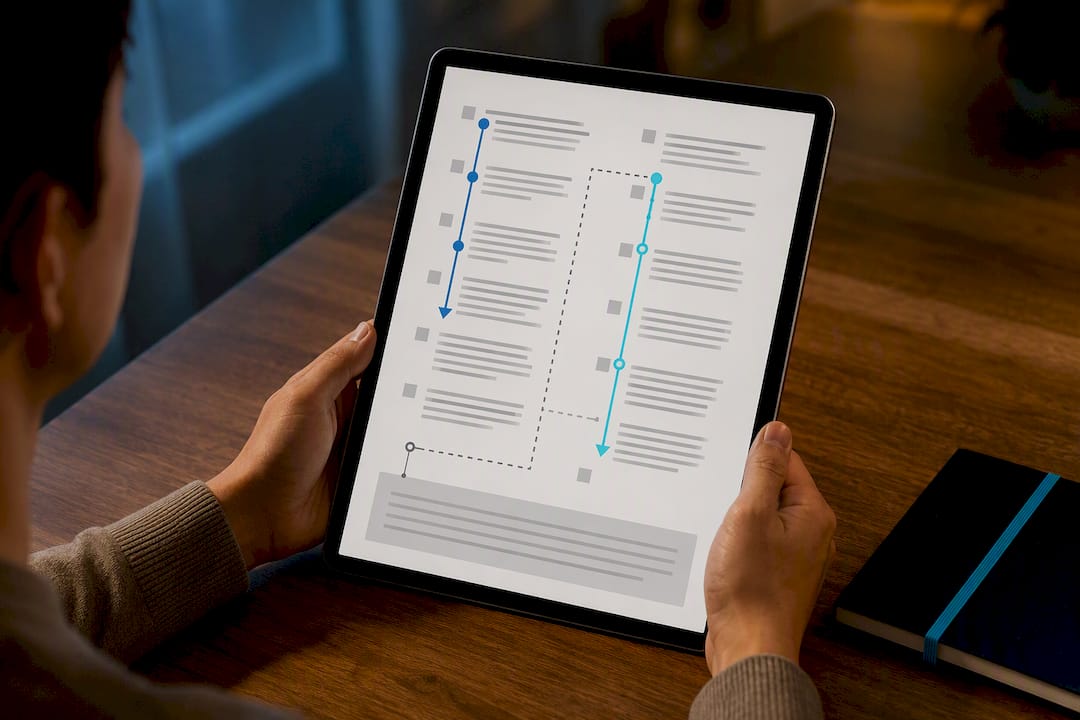
Multi-column layouts are one of the most reliable ways to break a PDF-to-Markdown conversion, and it's worth understanding the mechanism. Most PDF parsers read text in the order it was drawn on the page, not the order a human reads it. In a two-column academic paper, that often means the parser reads straight across both columns line by line, interleaving unrelated sentences from the left and right column into nonsense.
Layout-aware tools solve this by detecting column boundaries first and extracting each column as a separate text block before merging them in reading order. If your converter doesn't do this natively, check for a "column detection" or "reading order" flag before running anything through it.
Footnotes present a related but distinct problem. They're often positioned at the bottom of the page, and rule-based converters typically don't have any structural signal that a small block of text at the bottom is a footnote versus body text. The most common result is footnotes getting appended awkwardly to the end of the paragraph that appears above them on the page, breaking the connection between the footnote marker and its content.
A few practical fixes: for documents where footnote accuracy matters (legal briefs, academic citations), plan for a manual pass rather than trusting any automated tool to link markers correctly. For less critical documents, at minimum, check whether your converter preserves footnote text somewhere in the output, even out of position, since some tools drop it entirely rather than misplacing it. If you're running an OCR pipeline, forcing OCR on the full page rather than the main text block usually catches footnote text that a smarter text-only extraction might skip.
Automating Batch Conversion for Large PDF Sets
Converting one PDF is a five-minute task. Converting 5,000 is an engineering problem, and the tools that work for one file rarely scale cleanly to the other.
The core requirement for batch work is a CLI or API that accepts a directory (or list of URLs) as input and writes structured output without manual intervention per file. pandoc handles this through simple shell scripting, looping over a directory and calling the conversion command per file, which works well for straightforward text PDFs but doesn't include OCR routing on its own. Purpose-built PDF tools like pdf-to-markdown and the pdfmd family build batch mode in directly, including automatic OCR routing so scanned pages in a mixed batch get handled without a separate manual step.
For genuinely large jobs, plan the pipeline in three stages rather than one giant script: a triage pass that separates text-layer PDFs from scanned ones, a conversion pass that routes each type to the right tool, and a validation pass that flags files with unusually short output (a common signal that conversion silently failed on that specific file). Skipping the validation stage is the most common reason batch jobs produce a folder of .md files where a handful are quietly empty or corrupted, and nobody notices until weeks later when a document turns up missing from a search index.
If the batch is feeding a CI/CD pipeline or a recurring documentation build, a scripted pandoc or CLI call slots in as a build step, running the same conversion automatically every time source PDFs update rather than requiring someone to remember to re-run it manually.
Cleaning Up Markdown After Conversion
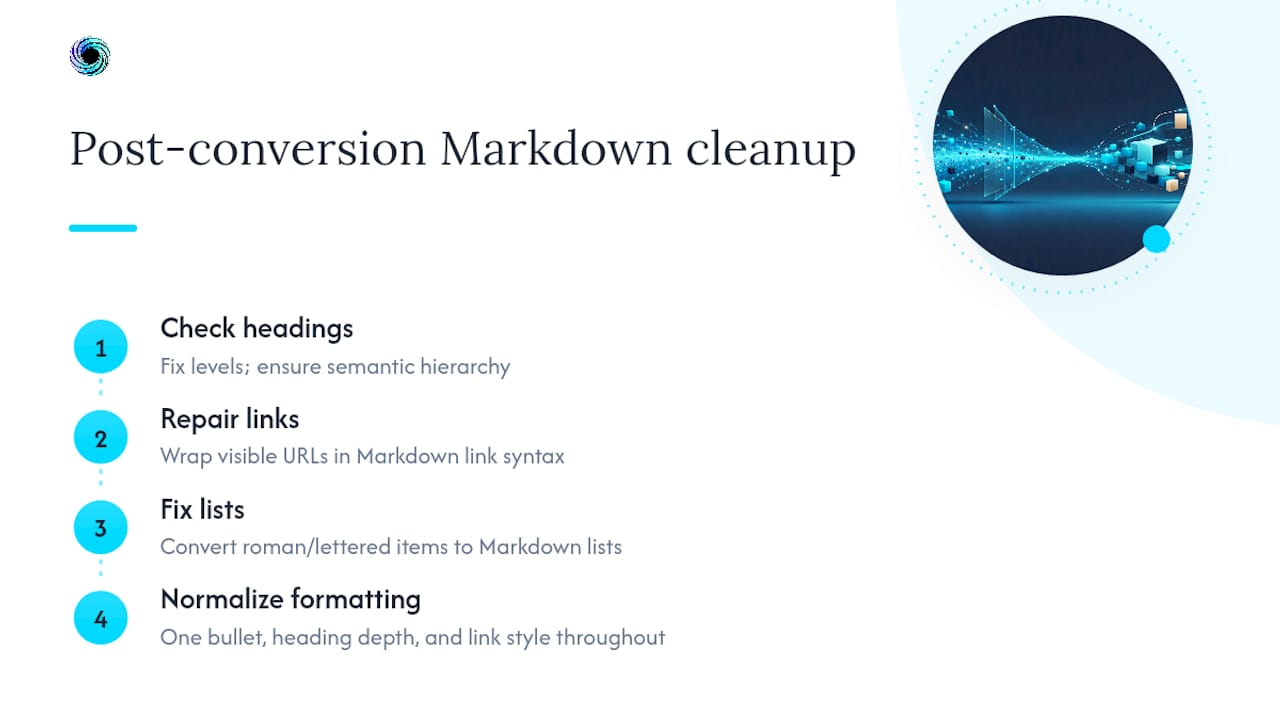
Conversion is rarely the last step. What comes out of a converter is a draft, not a finished document, and a short formatting pass afterward saves headaches in both note-taking and LLM ingestion contexts.
Headings deserve the first look. Converters frequently misjudge heading levels, especially when a PDF used font size rather than semantic tags to indicate hierarchy. Skim the document structure and fix any heading that jumped levels incorrectly (a ### that should be a ##, for instance), since inconsistent heading levels break the heading-based chunking strategy used in most RAG pipelines.
Links come next. PDFs sometimes encode hyperlinks as plain underlined text with no actual URL attached, which means the converter has nothing to extract and the link simply disappears. Search the converted file for URLs mentioned in visible text and manually wrap them in Markdown link syntax where the automated pass missed them.
Lists are the third common trouble spot. Numbered lists that used non-standard numbering in the original PDF (roman numerals, lettered sub-items) often convert as plain paragraphs rather than proper Markdown list syntax. A quick find of paragraphs starting with "a)" or "i." usually catches these.
Finally, run a consistency pass on formatting conventions: pick one bullet style (- versus *), one heading depth pattern, and one link format, and apply it throughout. Documentation that mixes conventions from file to file is harder to maintain and harder for downstream tools to parse predictably. Purpose-built guides on Markdown's advantages for documentation workflows cover why this consistency matters beyond just aesthetics, particularly for teams maintaining large documentation sets over time.
Why Token-Efficient, Local-First Conversion Wins
The conventional advice on this topic treats PDF-to-Markdown conversion as a solved, one-size-fits-all problem: pick a tool, run it, done. That advice undersells how much the right answer depends on what happens to the Markdown next. A note-taker converting a single PDF cares about readability. A developer building a RAG pipeline cares about token efficiency and heading structure that supports clean chunking. Those are different jobs wearing the same label.
The privacy question gets underweighted, too. It's easy to default to whatever online tool ranks first in a search, upload a document, and move on. For anything regulated, or anything you wouldn't want sitting on an unfamiliar server indefinitely, that convenience isn't worth the risk, and a local CLI costs you maybe five extra minutes of setup.
What actually matters most, based on everything covered here, is building a workflow that survives contact with a messy real-world PDF. That means routing scanned pages to OCR automatically instead of assuming every file has a clean text layer, validating output before it hits an index instead of trusting the conversion blindly, and choosing tools with typed, explicit failure states over ones that fail silently. A pipeline that tells you when something broke is worth more than one that promises nothing ever will.
— Glen
Sources
For programmatic conversion, pandoc's documentation covers every supported format and flag. Adobe's PDF Extract API announcement details its Markdown output for developer use. For offline CLI work, review the pdf-to-markdown repo and the pdfmd project for OCR and batch options. For the web-source half of an ingestion pipeline, Gyrence's guide on producing clean page Markdown covers validation checklists that apply equally well to PDF output.
- Introducing PDF to Markdown Support in Adobe PDF Extract API | Community
- pandoc
- PDF to Markdown Converter (pdfmd) — GitHub
FAQ
Can ChatGPT convert PDF to Markdown?
ChatGPT can extract and reformat PDF text into Markdown-style output when you paste text or upload a file, but it isn't a dedicated conversion tool and often struggles with complex tables, scanned pages, or multi-column layouts. For reliable, repeatable results, a purpose-built converter or CLI tool is a better fit than relying on a chat interface alone.
How can I convert a PDF to Markdown locally?
Use an offline CLI tool such as pandoc for straightforward text PDFs or pdf-to-markdown and pdfmd for documents needing OCR and table detection. All three run entirely on your machine with no upload step, which keeps sensitive documents off third-party servers.
Can Microsoft convert PDFs to Markdown?
Microsoft Word and Microsoft tools don't offer a native, dedicated PDF-to-Markdown export feature. Converting through Word typically means exporting to plain text or HTML first and then running that output through a separate Markdown converter like pandoc.
Does PDF support Markdown?
No. PDF is a fixed-layout format built for consistent visual presentation, and it has no native concept of Markdown syntax. Converting a PDF to Markdown requires a separate extraction step that interprets the PDF's text and structure and rewrites it in Markdown syntax.